- From your main Workday home page, hover over the Personal icon on the lefthand menu.
- Click on Benefits and Pay.
- Click on Benefits.
- Click on Benefit Elections.
- Click on the Change Benefits button under Benefit Elections.
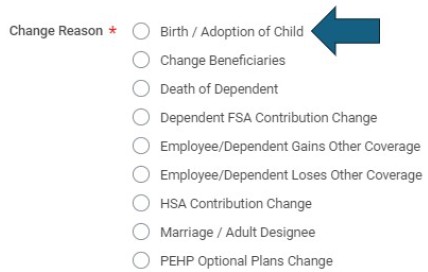
- For the Change Reason, click on the Birth / Adoption of Child radio button.
- Enter the date of birth or click on the calendar and then the date.
- Click out of the date box and you will see how many days are left in your 60-day window.
- Drop your child’s birth certificate in the attachments box or click the Select files button and choose it from your computer’s file.
- Click the blue Submit button at the bottom of the screen.
- Click the Open button in the ‘You have submitted’ pop up window.OR –
- 11a. Alternatively, the enrollment will be on your home screen in the Awaiting Your Action section, click on it.
- OR – 11b. Alternatively, you can find it in your My Tasks inbox at the top right.
- Once you click in, click on the Let’s Get Started button.
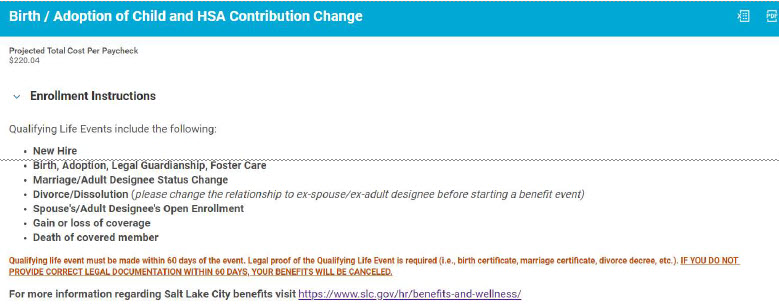
- Read the Enrollment Instructions screen.
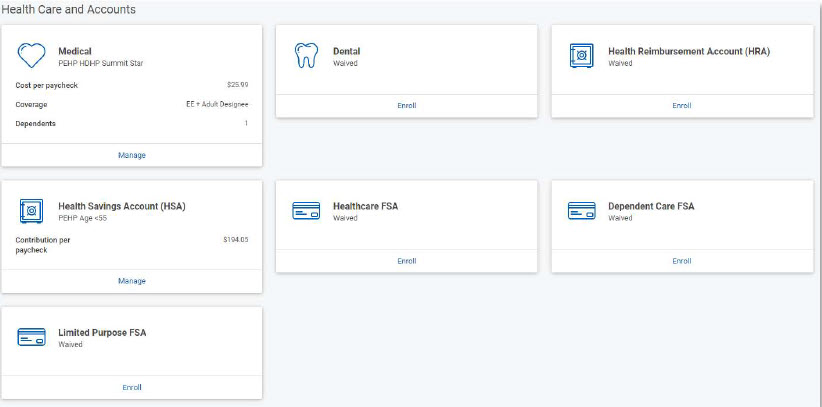
- Below the instructions are the enrollment worklets.This shows our Health Care options (Medical, Dental, HRA, HSA, Healthcare FSA, Dependent Care FSA, and Limited Purpose FSA).
- Click on Manage of the Medical worklet (if desired). If not, click on the desired worklet you wish to add newborn to.
- You will see your current coverage. Leave the “Select” button chosen.
- Click Confirm and Continue (you add new dependent on next page).
- Click the Add New Dependent button.
- You will need to enter the following information for your child:
- First Name (use legal name – this is an insurance record)
- Last Name
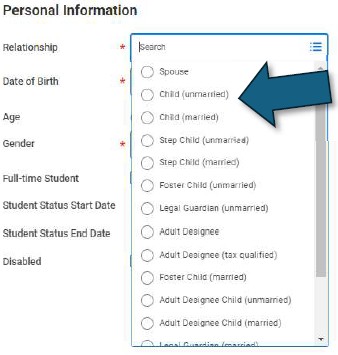
- Relationship (your newborn is an “unmarried child”)
- Date of Birth (be sure this is correct and matches the Effective Date of your enrollment)
- Gender
- National ID – this is the social security number (you may not have it yet, but PEHP will need this number for billing purposes)*See note below
- Address
- (*Allow Duplicate Name – If your child is named after you or your spouse, and you have more than one dependent with the exact same name, be sure to click that box so that Workday allows the repeat name and doesn’t think it is a repeat of the same person.)
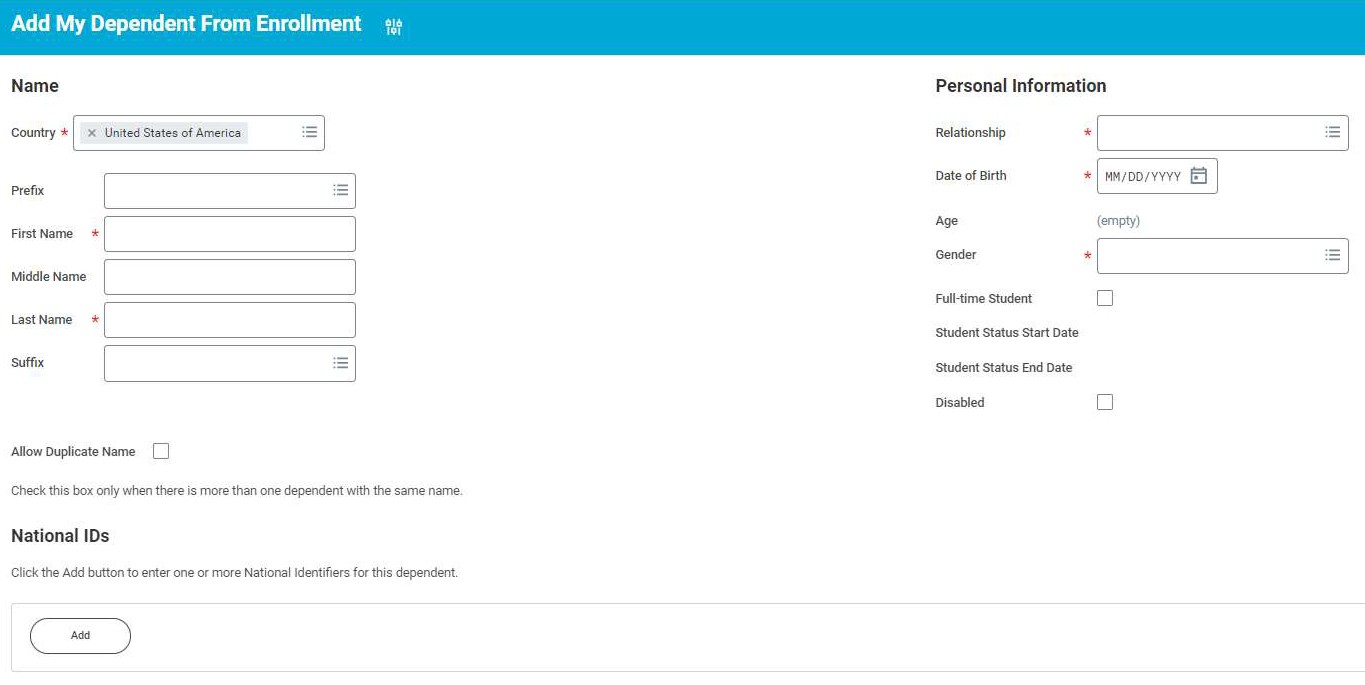
- Your newborn is your unmarried child (the child’s marital status, not yours):
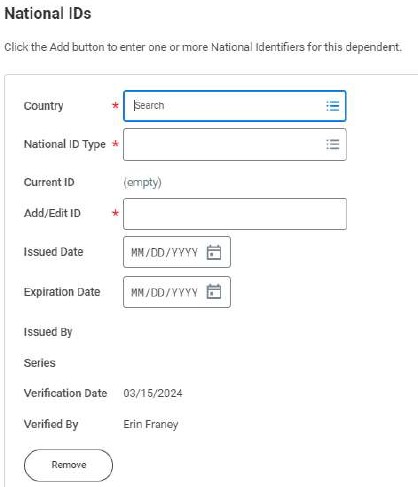
- On the National ID tab, click the Add button (if you do not have your child’s social security number yet, you may add a reason, such as “don’t have yet.” Instructions to add social security numbers can be found on the intranet under HR / Benefits and Wellness). You will be asked to provide this as we routinely audit dependent records for completeness.
- In the Country box, choose “Frequently Used,” and “United States.”
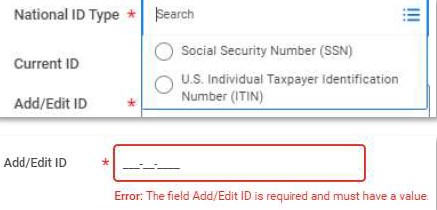
- In the National ID Type box, choose “Social Security Number (SSN).”Once you enter Social Security number for your newborn and click out, it will show XXXXXXXXX for security purposes.
- On the Address tab, click in the “Use Exiting Address” box.
- Choose your address.
- Click Save button at bottom of page.
- Child will show in benefits – be sure not to “uncheck” the box next to their name.ENROLLMENT:
- Click into each worklet for which you are eligible and want to add child.
- Medical – if you are not enrolled in medical, you may enroll you, your spouse, and your newborn child at this time. No other dependents are eligible to be enrolled at this time.
- Dental – if you are not enrolled in dental, you may enroll you, your spouse, and your newborn child at this time. No other dependents are eligible to be enrolled at this time.
- Dependent Care Flexible Spending Account – this is a use-or-lose account, enroll only if you know your child will be in a facility that can provide you receipts for your childcare enrollment.
- Child Life – if you have other children enrolled in the Child Life policy, you must add newborn for coverage to include that child; however, you are not allowed to add other children at this time for guaranteed issue, you will have to go through underwriting (Evidence of Insurability) for any children you are adding outside their guaranteed issue enrollment:
- new hire (Optional Term Life – $200k; Spouse Term Life – $50k; Child Life – $15k)
- marriage (Spouse Term Life – $50k; Child Life (new stepchildren only) – $15k)
- birth/adoption (Child Life – $15k (newborn (or adoptee) only – siblings must go through underwriting if not previously added at their birth, new hire, or, if stepchildren, at marriage enrollment)).
- Click Review and Sign button when you have added baby to desired (and eligible) enrollments.
- Review your enrollment for accuracy (top of screen).
- If you did not add the birth certificate at the beginning of the enrollment, add it now to the attachments section.
- Scroll down, read through the Legal Disclosure.
- Click the “I Accept” box.
- Click the Submit button.

Questions? Run into problems?
Email us for assistance – Benefi[email protected] Or call – 801-535-6600