- From your main Workday home page, hover over the Personal icon on the lefthand menu.
- Click on Benefits and Pay.
- Click on Benefits.
- Click on Benefit Elections.
- Click on the Change Benefits button under Benefit Elections.
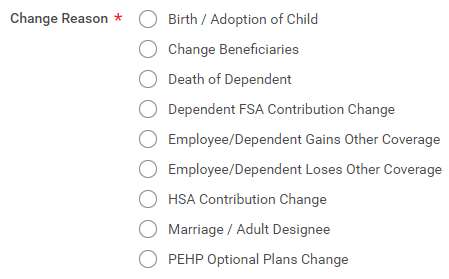
- For the Change Reason, click on the Change Beneficiaries radio button.
- For the date, put today’s date (you cannot future- or past-date this enrollment).(You do not need to attach any documents or enter comments for this change.)
- Click the blue Submit button at the bottom of the screen.
- Click the Open button in the ‘You have submitted’ pop up window.
- Once you click in, you will click on the Let’s Get Started button.
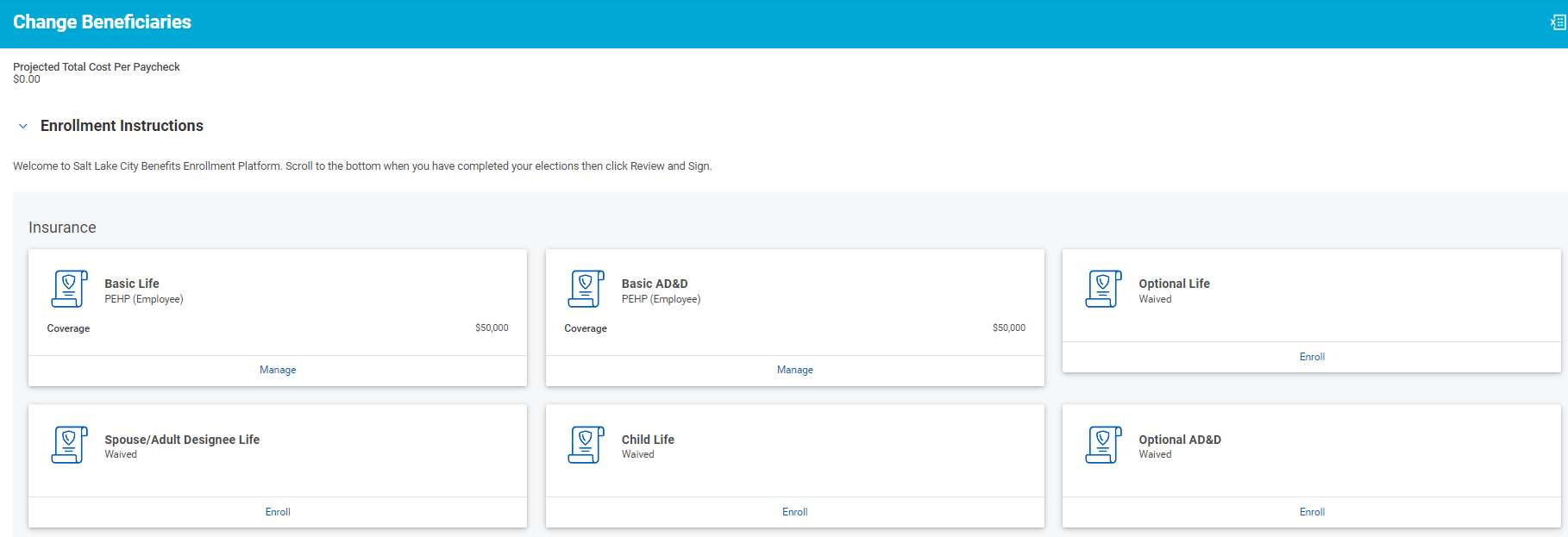
- You will see all plans which, if enrolled in, require beneficiaries. You must choose beneficiaries for the Basic Life (the City-paid $50,000 basic life policy) and the Basic AD&D (the City-paid $50,000 Accidental Death & Dismemberment policy). Any others in which you are enrolled also require beneficiaries.
IMPORTANT THINGS TO KNOW:- PEHP will not pay out claims to minors, if you want your policies to be left to your children, you will have to create a trust (see an estate lawyer for this).
- You are the employee, therefore, if you want to make yourself a beneficiary on Spouse or Dependent Life (you are the insured party on everything else), add yourself and choose “Self” as the relationship type.
- Do not put your spouse as the dependent and the beneficiary on Spouse/Adult Designee Life. If something happens to your spouse, the money cannot be paid to them.
- For the Basic AD&D and Optional AD&D plans, do not put yourself as a beneficiary. If you are still living in the case of dismemberment, PEHP will pay you directly. The primary beneficiary listed will only be paid in the case of your death.
- If anything happens to one of your beneficiaries before the policy is paid out, that person’s percentage will go to the remaining beneficiaries.
- Questions? Call PEHP’s life department at 801-366-7495.
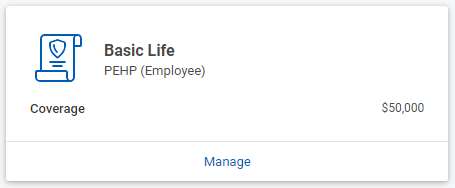
- Click Manage at the bottom of the Worklet.(For the Basic Life and Basic AD&D, you cannot select or waive because it is a City-provided benefit (at no cost to you)).
- Click Confirm and Continue at the bottom of the screen.
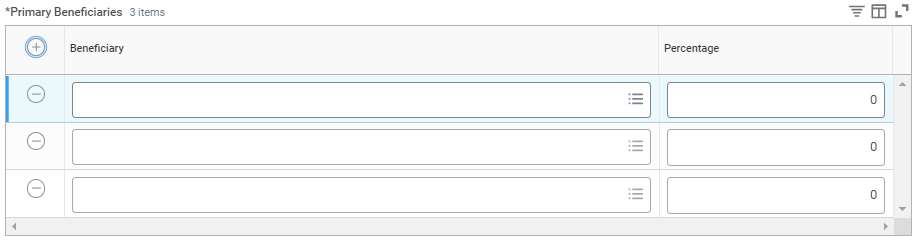
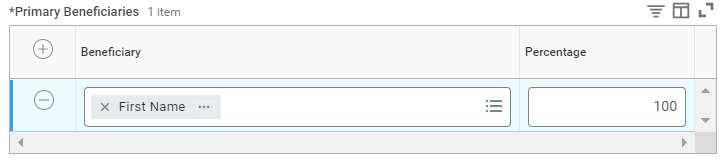
- You are required to enter one beneficiary per policy. If you choose to do only one, make them the Primary Beneficiary.
- Click on the to the left of Beneficiary. For example, if you know you are going to have 3 beneficiaries per category, click the sign 3 times.to the left of the empty. If you clicked it too many times, be sure to click the box. (Any empty boxes when trying to submit will cause an error.)
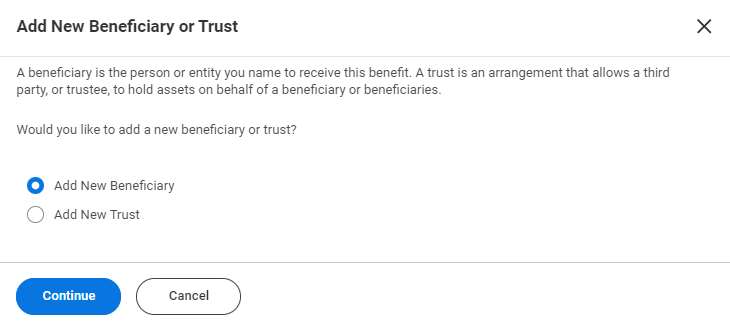
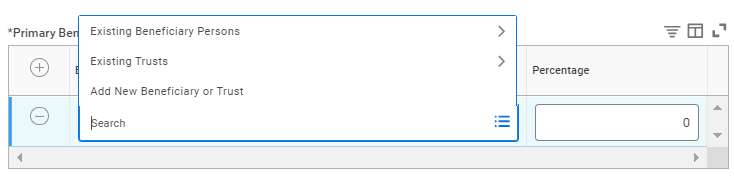
- Click in the empty box, click on Add New Beneficiary or Trust.
- Click continue. (Click the radio button to Add New Trust if you want to add a trust.)
- You must fill out all items with a red asterisk *
- Relationship (beneficiary’s relationship to YOU)
- If person’s relationship doesn’t match any listed, choose other.
- Do not put Adult Designee unless you have provided the paperwork to human resources and been approved.
- First Name
- Last Name
- Address (on the Contact Information tab) You must click address usage type:
- Phone number is not required, but a good idea (also located on the Contact Information tab).
- Relationship (beneficiary’s relationship to YOU)
- Click OK at the bottom of the screen.
- If you’re only going to have one beneficiary, put the percentage amount to 100. If you are selecting multiple primary beneficiaries, choose the percentage of the policy payout you would like them to receive. You can use decimals, but they must add up to 100 (i.e., you cannot have three beneficiaries and do 33.33, 33.33, and 33.33 – you must have one person be 33.34). Same goes for Secondary Beneficiaries. You do not need secondary beneficiaries if you have multiple primary beneficiaries. If something happens to one of your primary beneficiaries, PEHP will pay out that share to the other beneficiaries listed. More than one beneficiary is always a good idea.
- When you are happy with your chosen beneficiaries and percentages for Basic Life, click on the Save button at the bottom of the page.
- Click on Manage under Basic AD&D. Now that you have entered beneficiaries, it is faster to choose them in the other policies.
- Again, you cannot select or waive Basic AD&D, click on Confirm and Continue.
- If you are using the same beneficiary as before, you can now search for them in the empty box. Don’t forget to enter the percentage.
- When you are happy with your chosen beneficiaries and percentages for Basic AD&D, click on the Save button at the bottom of the page.
- Click the Review and Sign button at the bottom of the page.
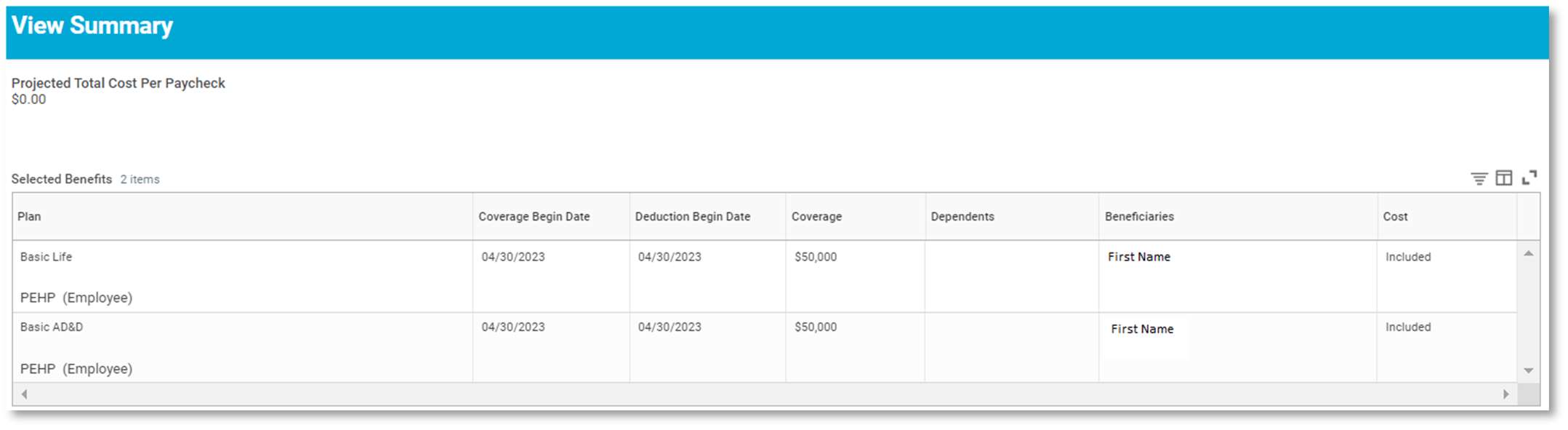
- On the View Summary page, check your work for accuracy.You do not need to upload documents for this change.
- Read the Legal Notice and click the “I Accept” box.
- Click the Submit button at the bottom of the page.



If you click “Save for Later” and do not return to your enrollment in a timely manner, your choices will be lost when we finalize open, unfinished enrollments.
Questions? Run into issues?
Reach out to us at benefi[email protected]
or call 801-535-6600
If you have not done so, consider adding beneficiaries for your other Salt Lake City Corporation benefits:
- URS – Utah Retirement Systems (pension, 401(k), 457, IRAs – urs.org
- Empower – 457 – empower.com
- HealthEquity – HSA administrator – healthequity.com